
Google Chrome
Install from the Chrome Web Store.
The link will appear after publication
Install the extension, pin its icon, sign in and open any lot on Copart or IAAI. It is free.
Choose your browser. In the store press the install button and confirm it in the browser’s window.
Install from the Chrome Web Store.
The link will appear after publication

Install from Edge Add-ons.
The link will appear after publication
Pinned, SmartBid is always one click away in the browser’s toolbar.
Click the puzzle icon to the right of the address bar.
Press the pin next to SmartBid.
SmartBid is now always at hand in the toolbar.
The account is free.



Install from the Chrome Web Store with the same Chrome button above: these browsers accept extensions from it.
The link will appear after publication
Opera: if the browser does not install from the Chrome Web Store, use the Opera store when we have published there.
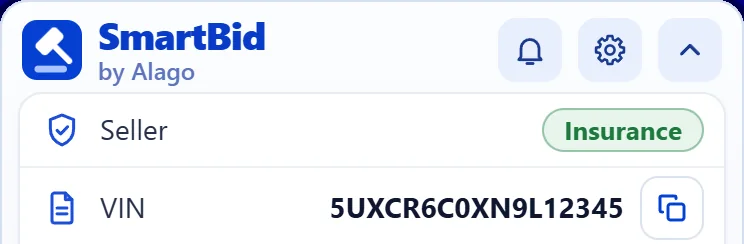
On a lot page, the SmartBid card appears in the right column: the seller, the full VIN, the sale time and the all-in price.